Import using the KoboReader database file
1. Grab your KoboReader from your Kobo
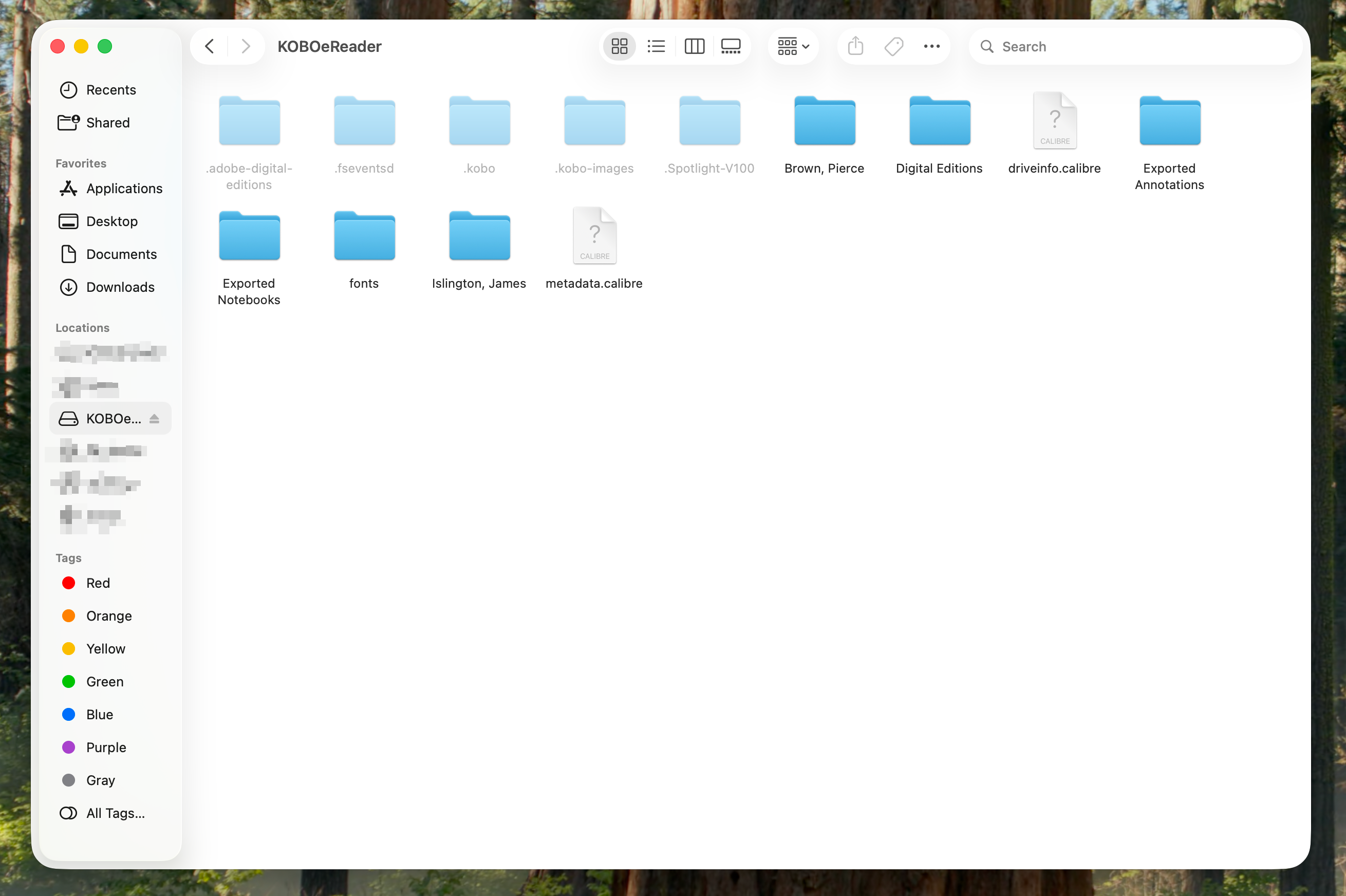
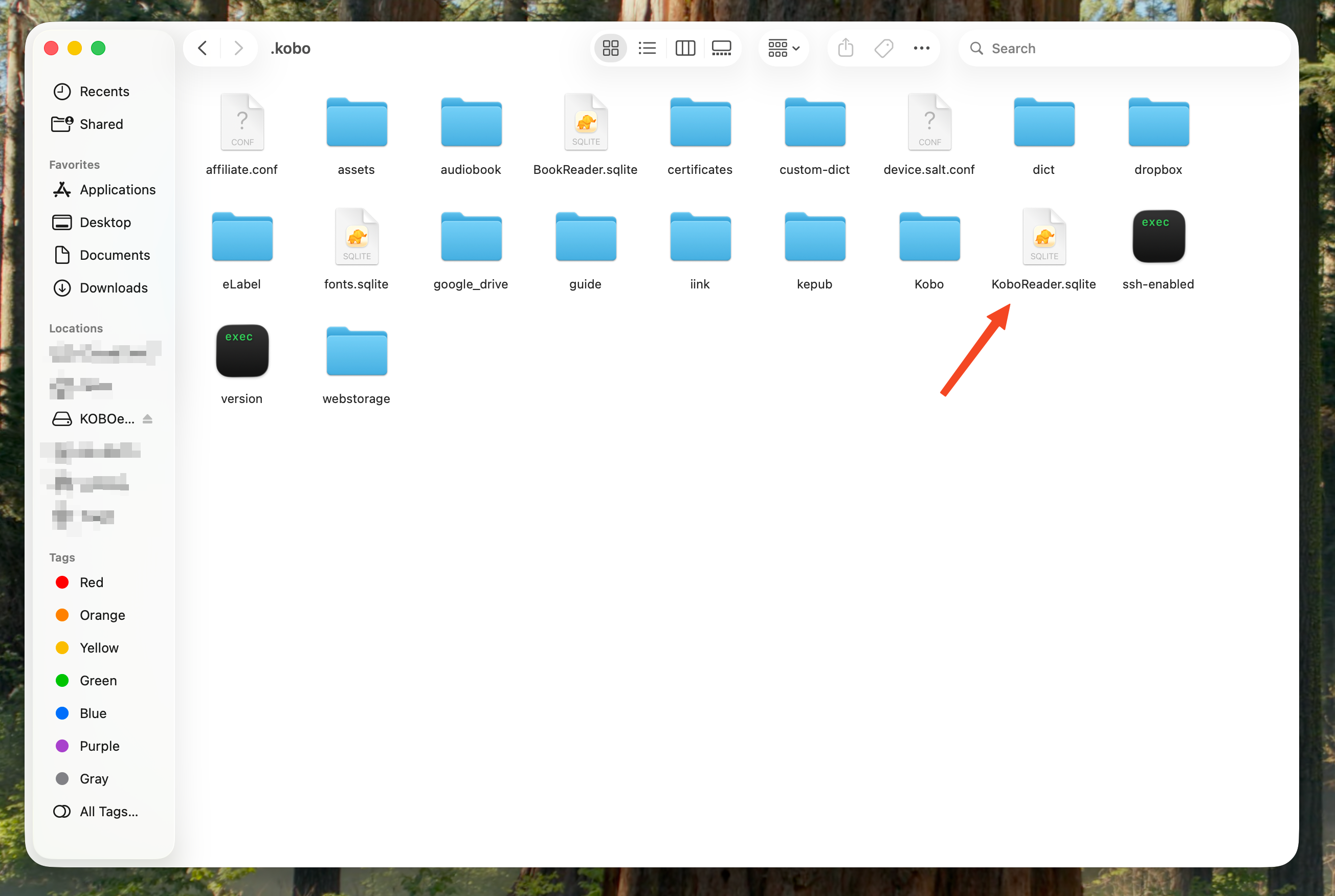
Plug your Kobo into your computer or phone, and navigate to the .kobo folder on it. Grab the KoboReader.sqlite file and save it somewhere. You can now disconnect your Kobo.
ℹ️ Note If you do not see the .kobo folder, your computer likely hides "hidden files". Press Command + Shift + Period on a Mac or View -> Hidden Items on Windows.
2. Upload your KoboReader file
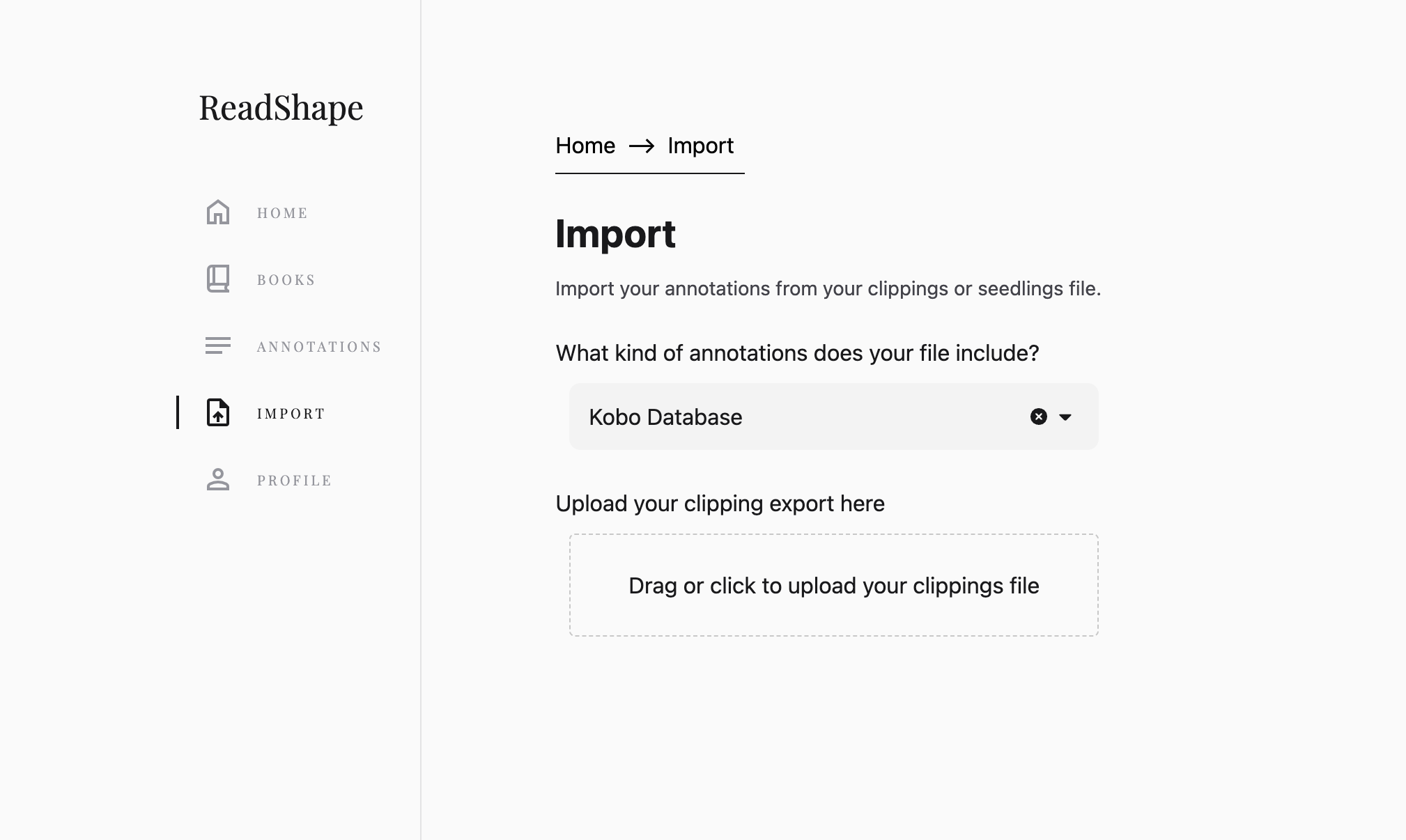
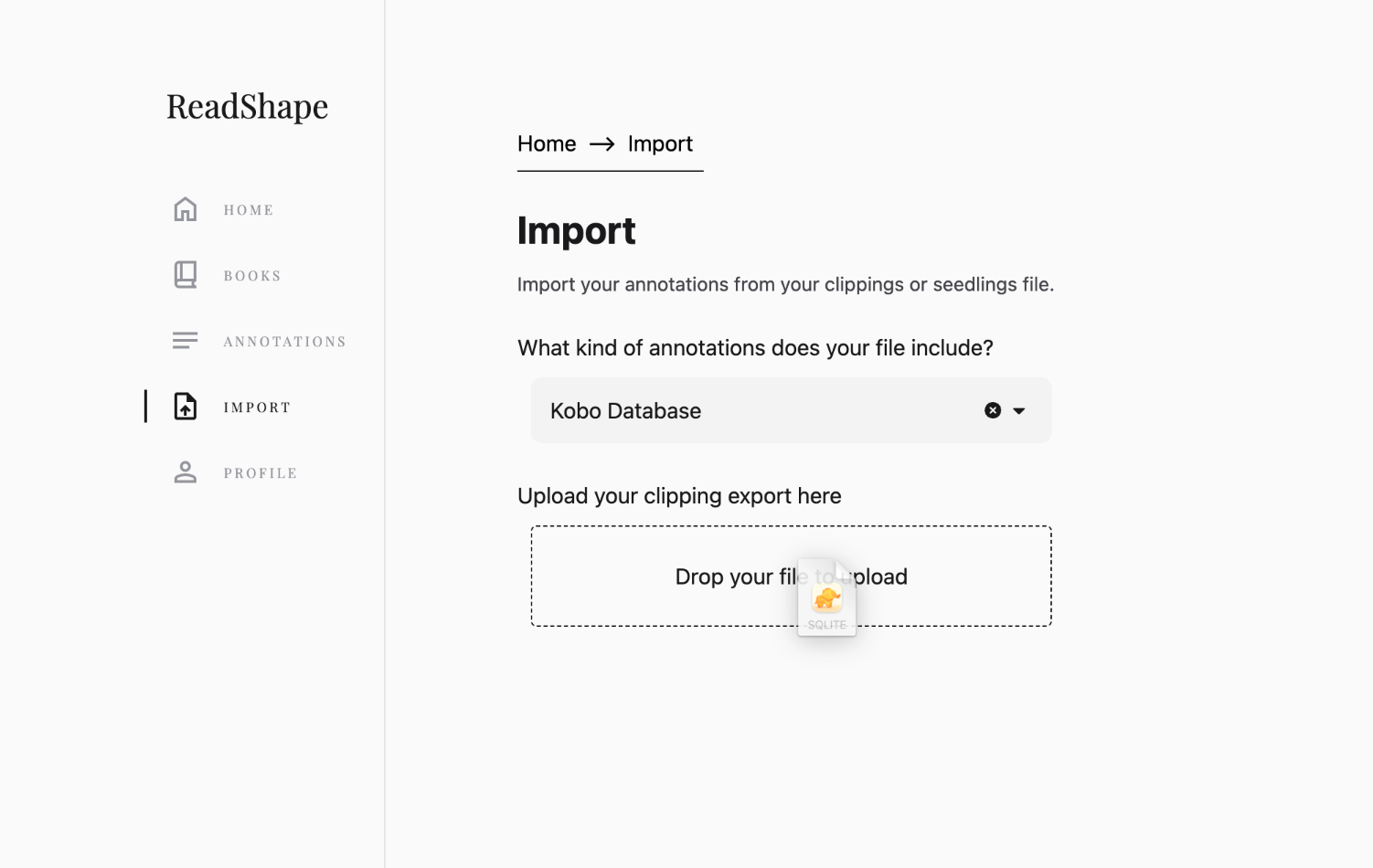
Now, in ReadShape, navigate to the “Import” page and select "Kobo Database" from the dropdown. Then, upload the saved KoboReader.sqlite file
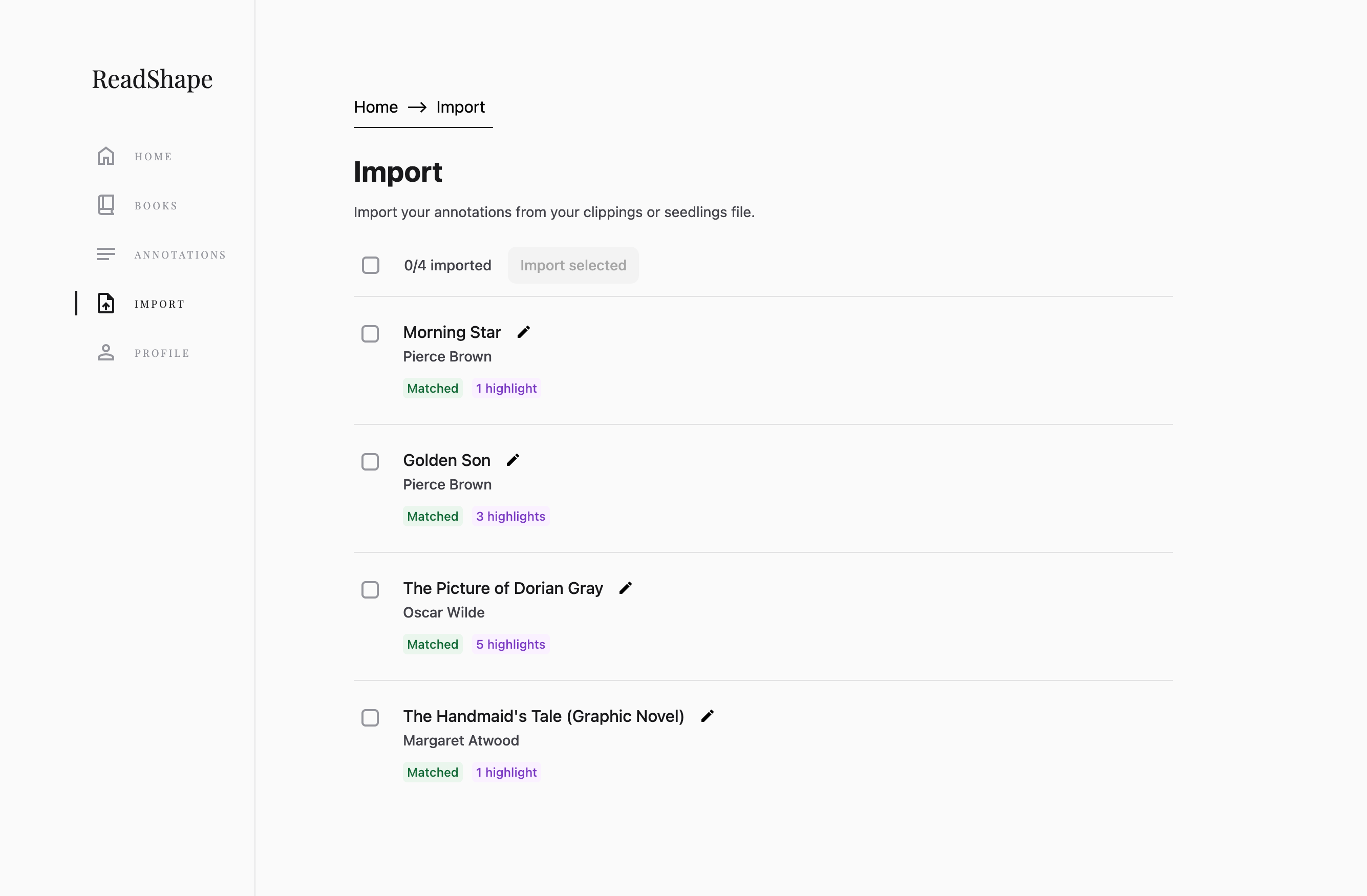
3. Review your clippings
Finally, review your books and when all the details look good click “Import”.
💡 Note: ReadShape will automatically try to figure out what book each highlight belongs to in order to find the cover, full author list, and other details.
However, sometimes we might need help. In such cases a message will be shown saying that we couldn’t automatically find the book in our directories and ask for help in correcting the details.
4. That's it!
That’s it! Hope you enjoy using ReadShape!