Import using the Kobo on device app
Install an application directly onto your Kobo which will sync highlights with ReadShape automatically.
📦 Version Note: Currently this will only work on Kobo devices running firmware 4.x (current LTS)
Once firmware 5.x is fully released we will be sure to suppor that too.
🛜 Network Note: For this set up to work you need your computer or phone to be on the same wifi network as the kobo.
It will not work on public networks such as those in cafes, libraries, etc.
1. Download the app & install it on your Kobo
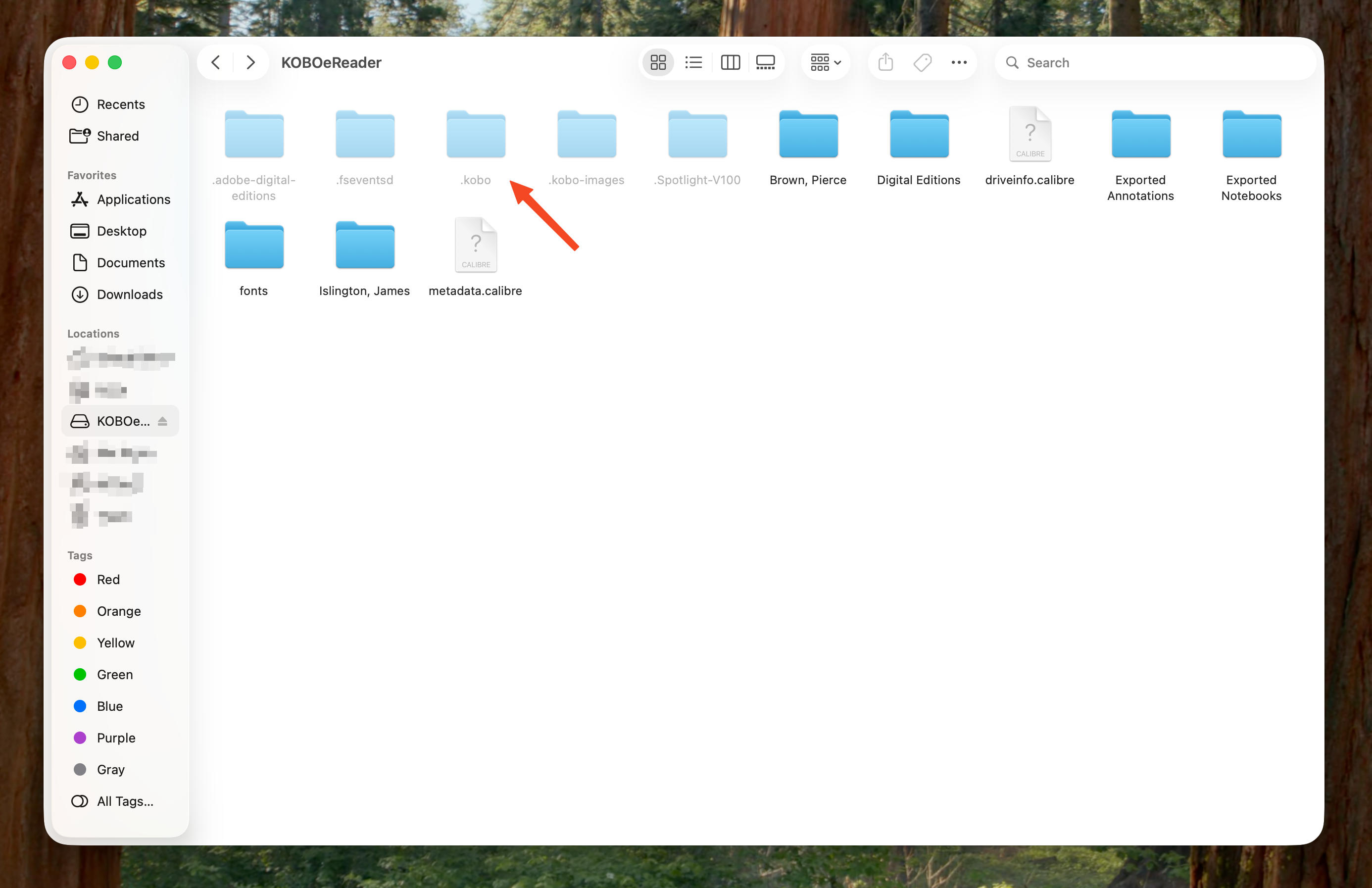
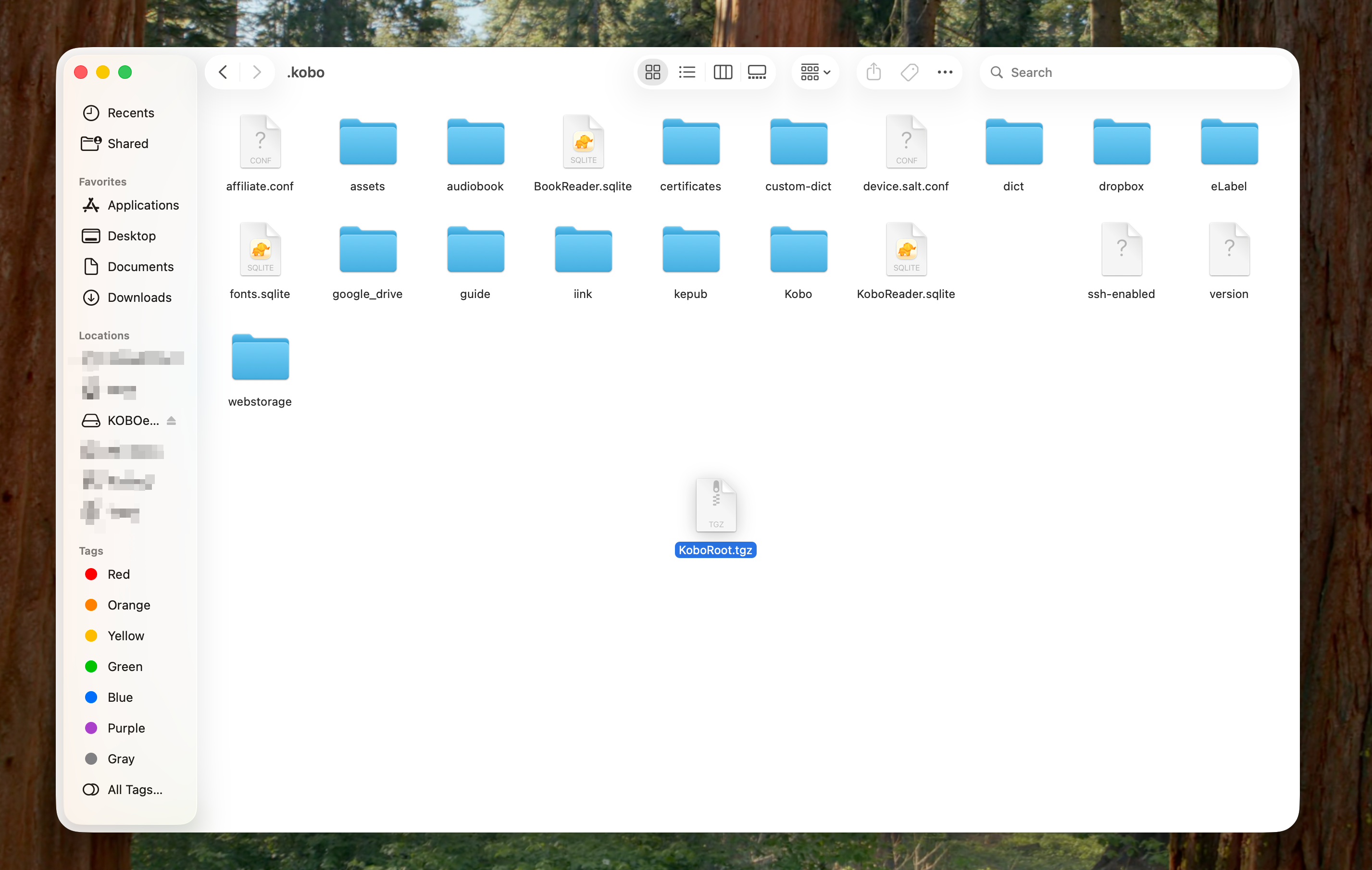
Download this document and unzip it. Plug your Kobo in and drag the KoboRoot.tgz into the .kobo directory on your Kobo.
Eject the device and wait for it to update.
ℹ️ Note If you do not see the
.kobofolder, your computer likely hides "hidden files". Press Command + Shift + Period on a Mac or View -> Hidden Items on Windows.
2. Authorize the Kobo with your ReadShape account
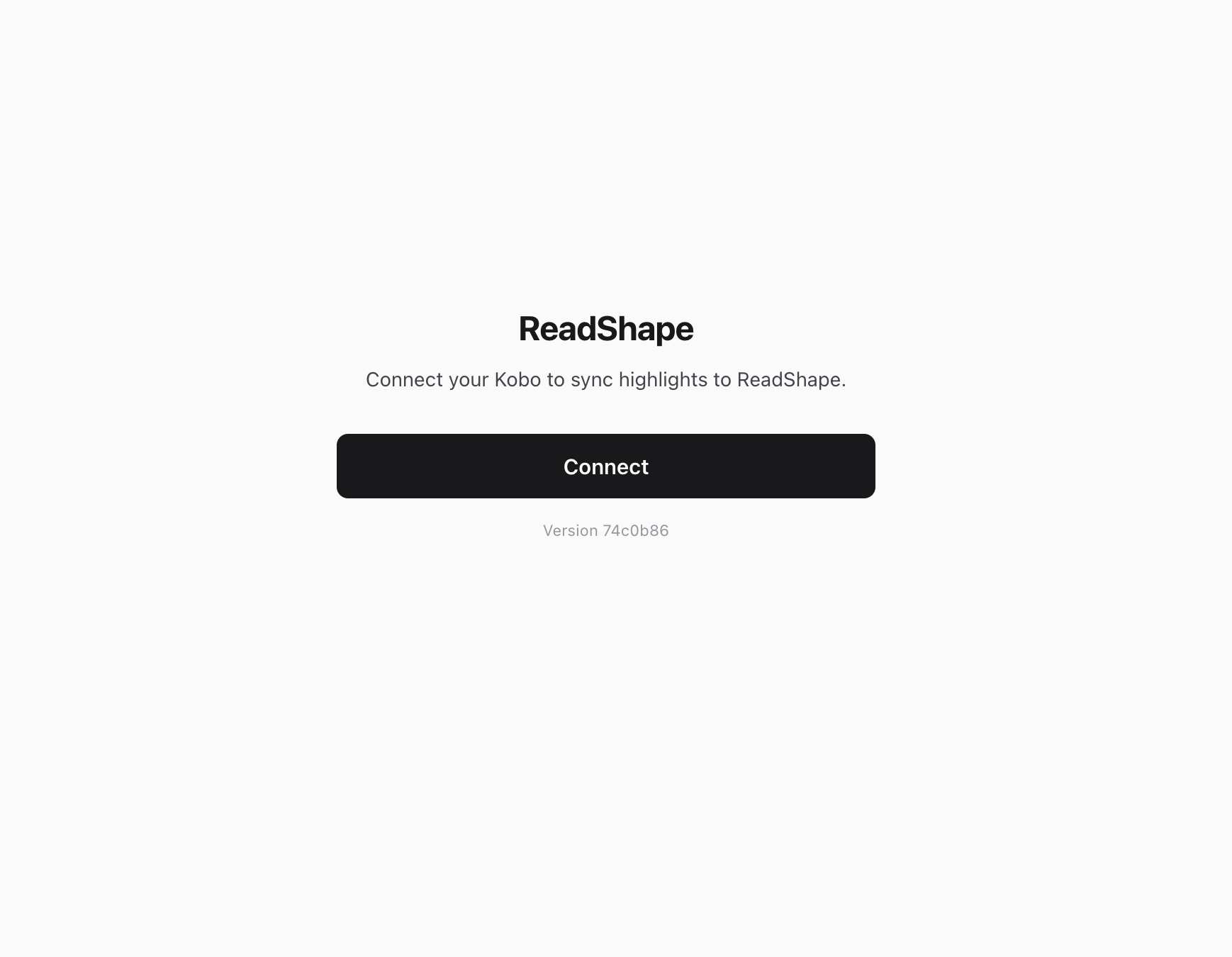
Now, after the Kobo has updated and restarted wait for it to connect to your wifi network. After a few seconds proceed to the URL kobo.local:5626.
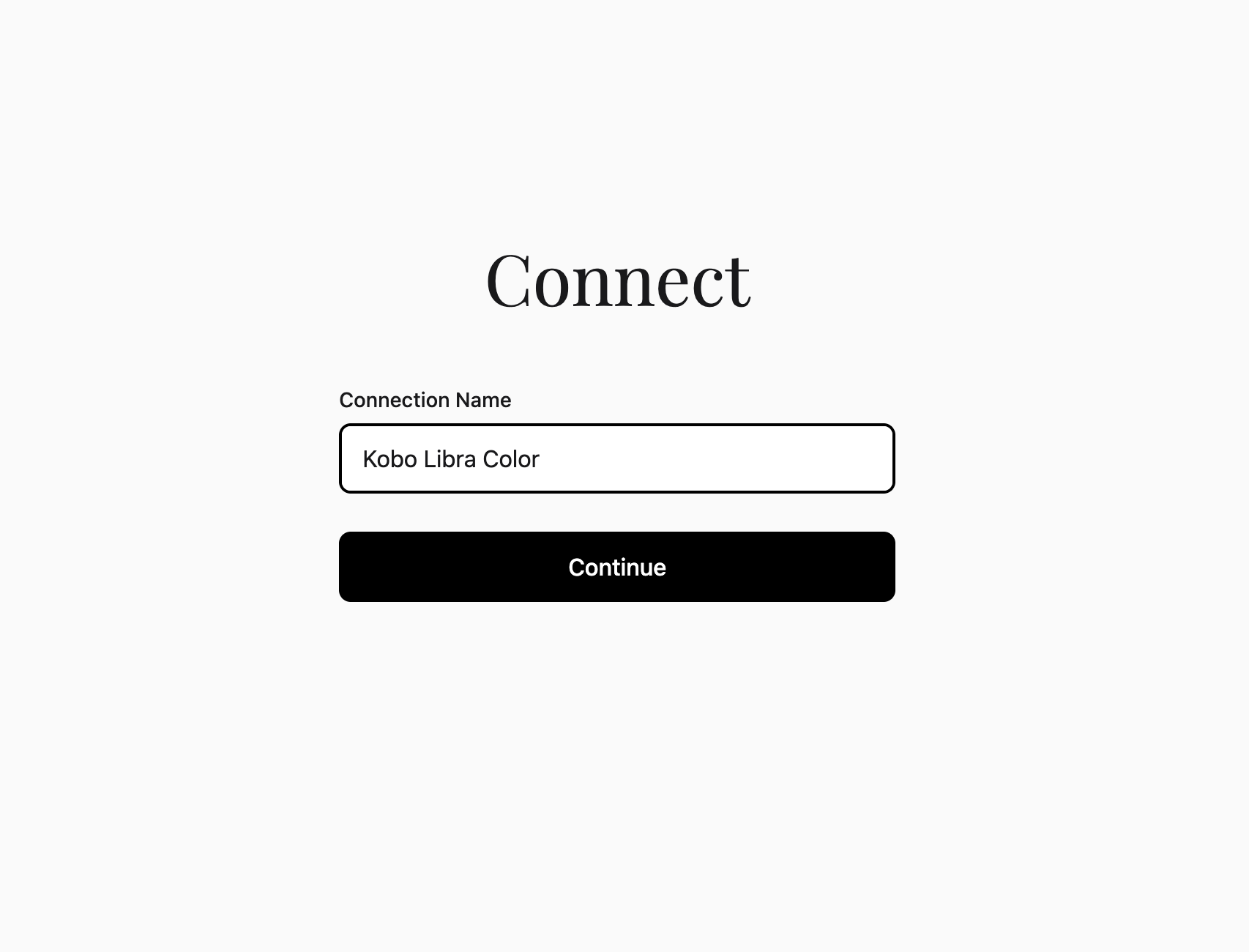
Tap the "Connect" button and follow the connection steps.
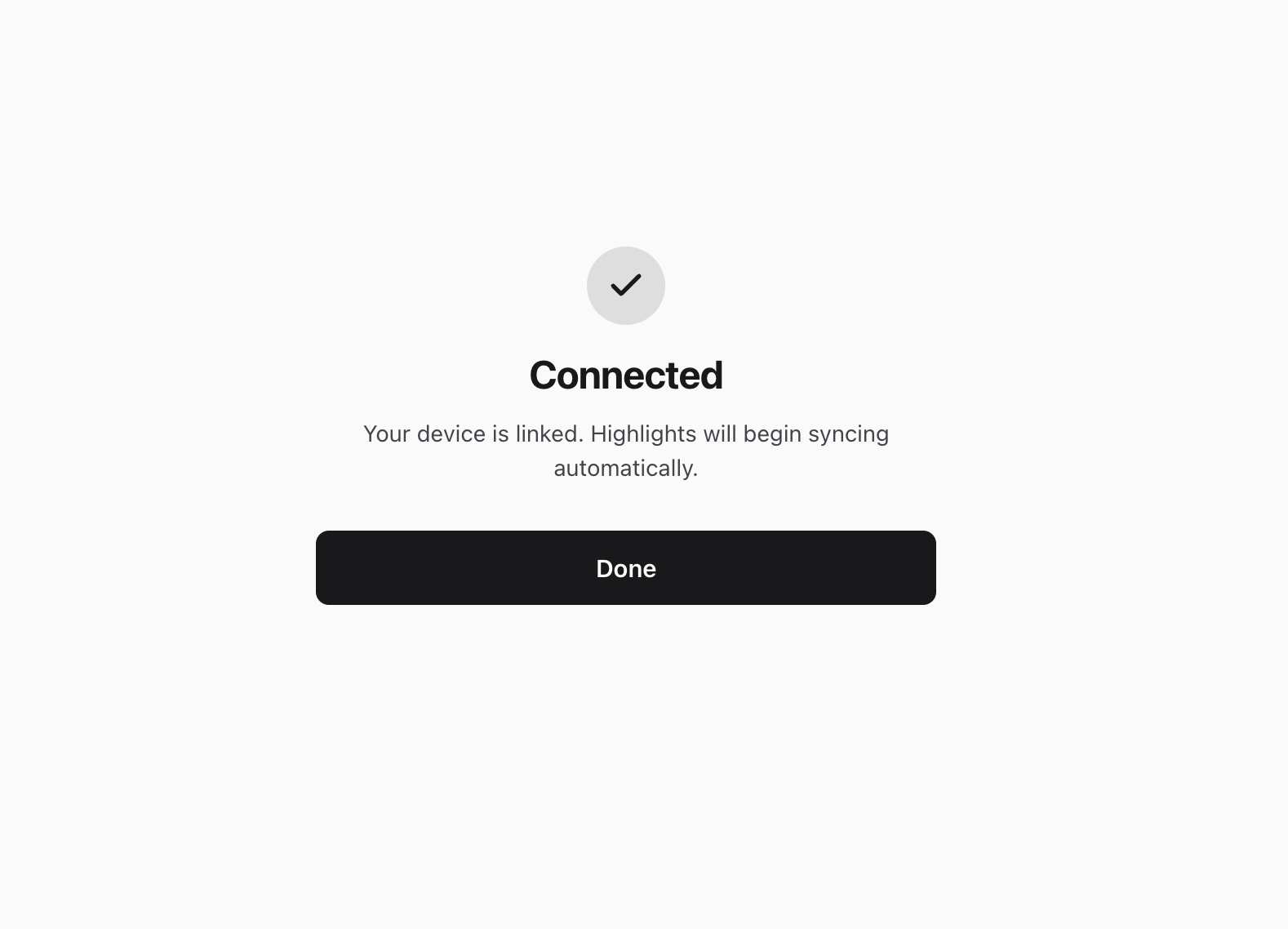
3. Wait for your annotations to sync
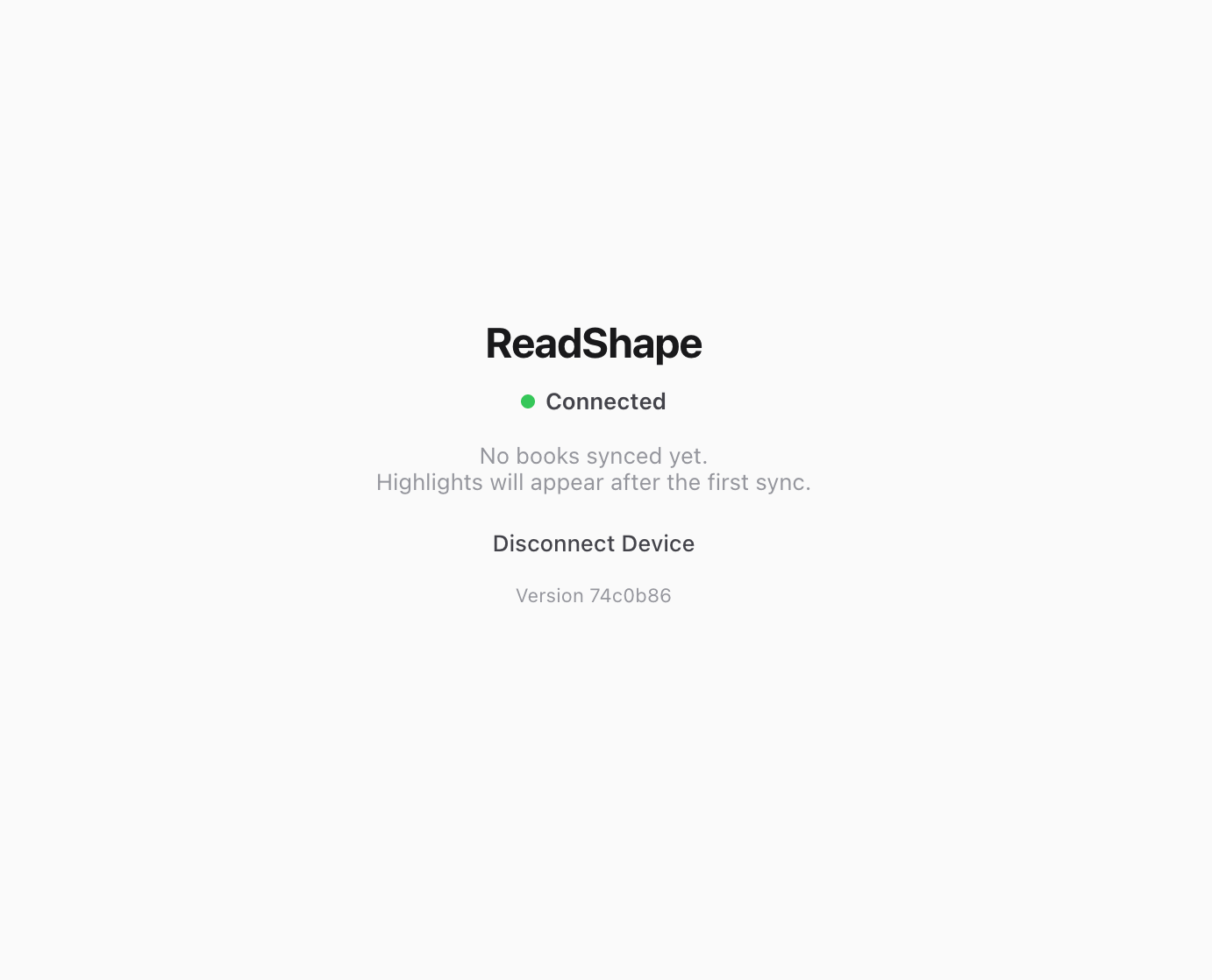
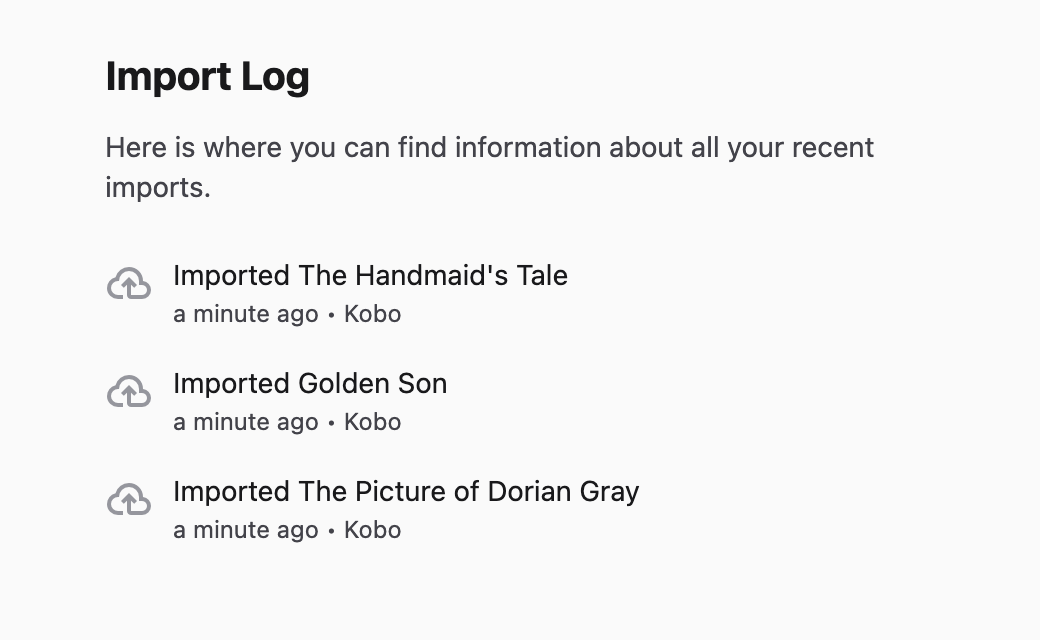
Finally, if all went according to plan your annotations should be syncing. You can refresh the page to see what already has been synced.
4. Any issues?
Did you run into any issues that you cannot figure out? Feel free to E-Mail us at help@readshape.com or by E-Mailing me personally at tbu@readshape.com.